In certain instances, it is useful and efficient to be able re-use an existing simulation setup, but with different model geometry. Take the case of a design project considering multiple variations of hull and/or appendage geometry where you would like to analyze and compare hydrodynamic performance with Orca3D Marine CFD. In creating the initial CFD simulation, the user may have modified the default Orca3D Marine CFD simulation setup to create certain customizations in SimericsMP. For example, there may be some custom expressions created in the expression editor that are used as input to the simulation. Or, you may have enabled certain non-default output, like pressure distribution export, that you would like to re-use in multiple simulations with different geometry for the same project. Once you have customized a simulation set up to your specific needs, it is possible to re-use that simulation as a template for future simulations.
The principal requirement for re-using a SimericsMP simulation as a template is that the number and names of the CAD surface geometry is the same between simulations (although the specific shape of the geometry can change). Orca3D Marine CFD provides the geometric representation of the model to be run in the simulation through STL files. For each "face type" identified in Orca3D through the face attribution process (e.g., hull, deck, transom), a separate STL file is created representing the associated CFD boundary.
In the example below for the Eastport 32, you will note that the CAD Surface geometry consisted of 2 boundaries, the hull and the deck, which were exported from Rhino as two separate STL files, hull.stl and deck.stl.
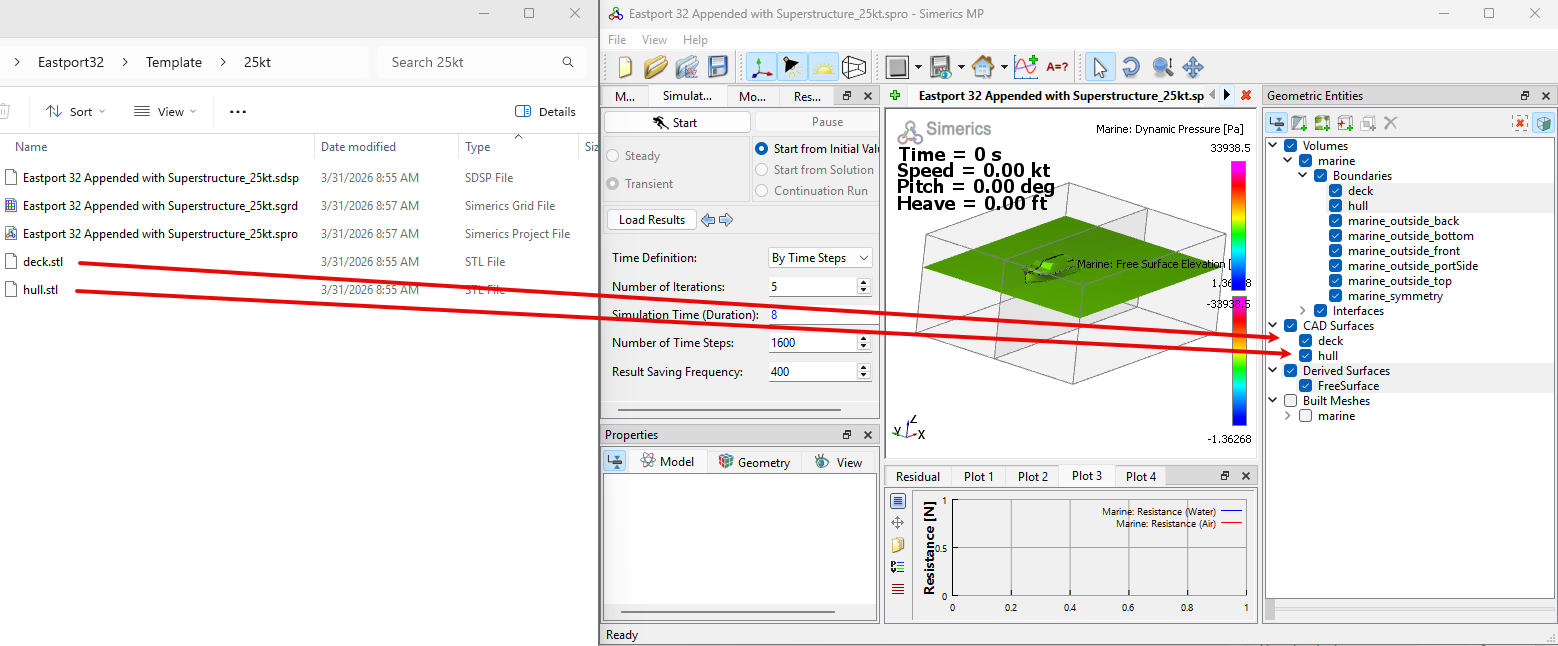
Once this simulation has been set up and saved (and optionally run), it is possible to use it as a template with different geometry as follows:
1. First copy the initial simulation that you want to use as a template to a new folder so that you don't affect the original simulation. For reference we will call this folder "New Geometry".
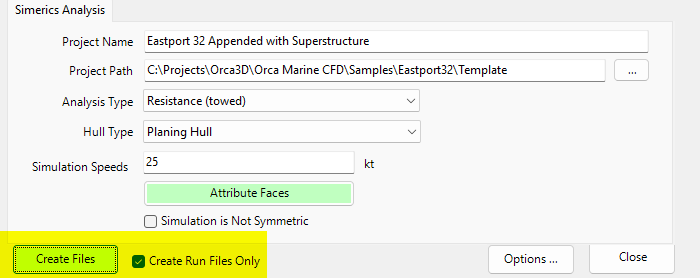
2. Next, for the new geometry to be analyzed, use Rhino and Orca3D Marine CFD to create a new simulation with similar face attribution that was used in the initial simulation. You can use the "Create Run Files Only" option to just create the simulation files but not open the new simulation as shown below. Make sure the Project Path represents a new unused folder.
3. Now copy the STL files created by Orca3D in the Project Path folder to the "New Geometry" folder, overwriting the existing STL files there if any.
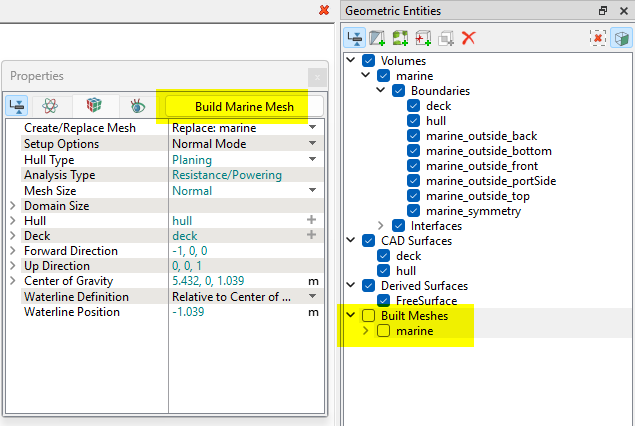
4. Open the .spro file in the "New Geometry" folder in SimericsMP. Then select the CAD surfaces in the Geometric Entities tree and delete them as shown below (these are the original CAD surfaces that were in the template).
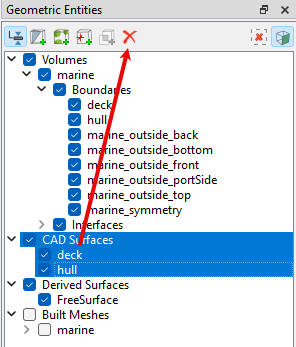
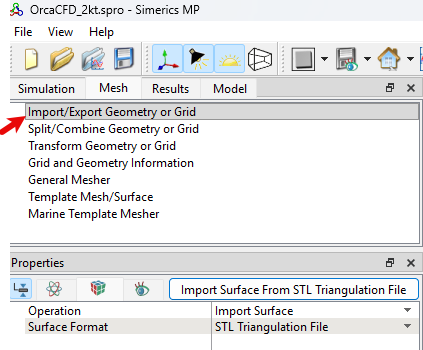
5. The next step is to import the new geometry STL files created from Rhino/Orca3D. In the Mesh panel select the option to "Import/Export Geometry or Grid" as shown below and then select the "Import Surface from STL Triangulation File" button. Locate the new STL files that you copied into the "New Geometry" folder which in this example would include hull.stl and deck.stl files.